Photoshop's Count tool numbers vanish when you export.
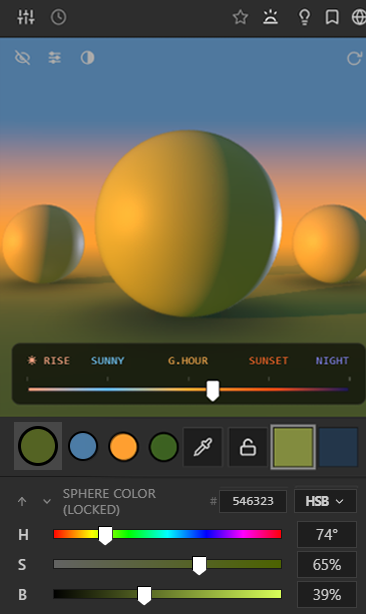
Number your artwork for clients and art directors. A Better Count Tool turns the Count tool markers into real text, so the numbers are in the file you send.
Photoshop 2021 or newer. No account, no sign-up.
Photoshop's default Count tool numbers don't show up in your export.
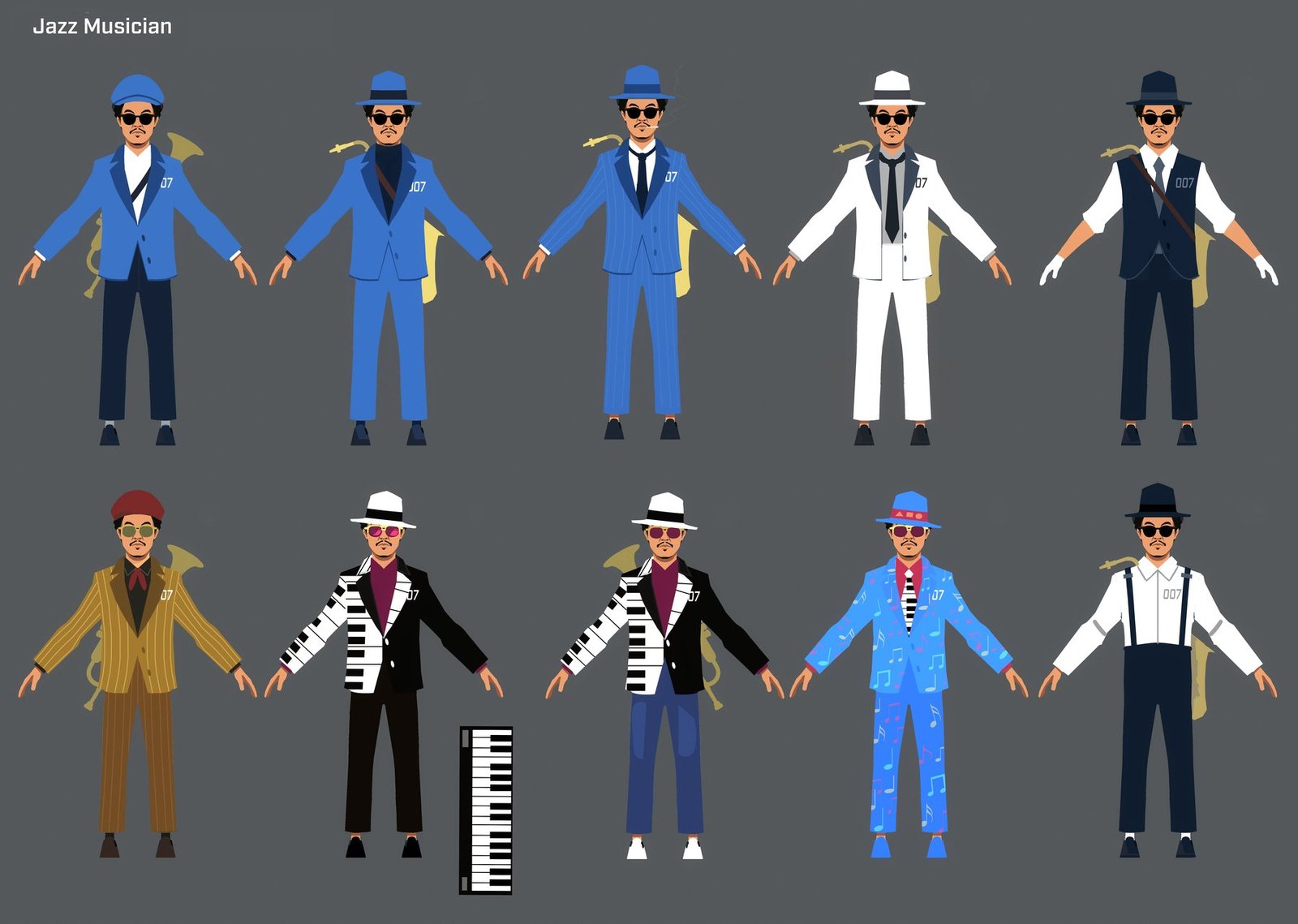
Both images were exported from the same Photoshop file. Left: Photoshop's default Count tool. Right: A Better Count Tool. Drag the line to compare.
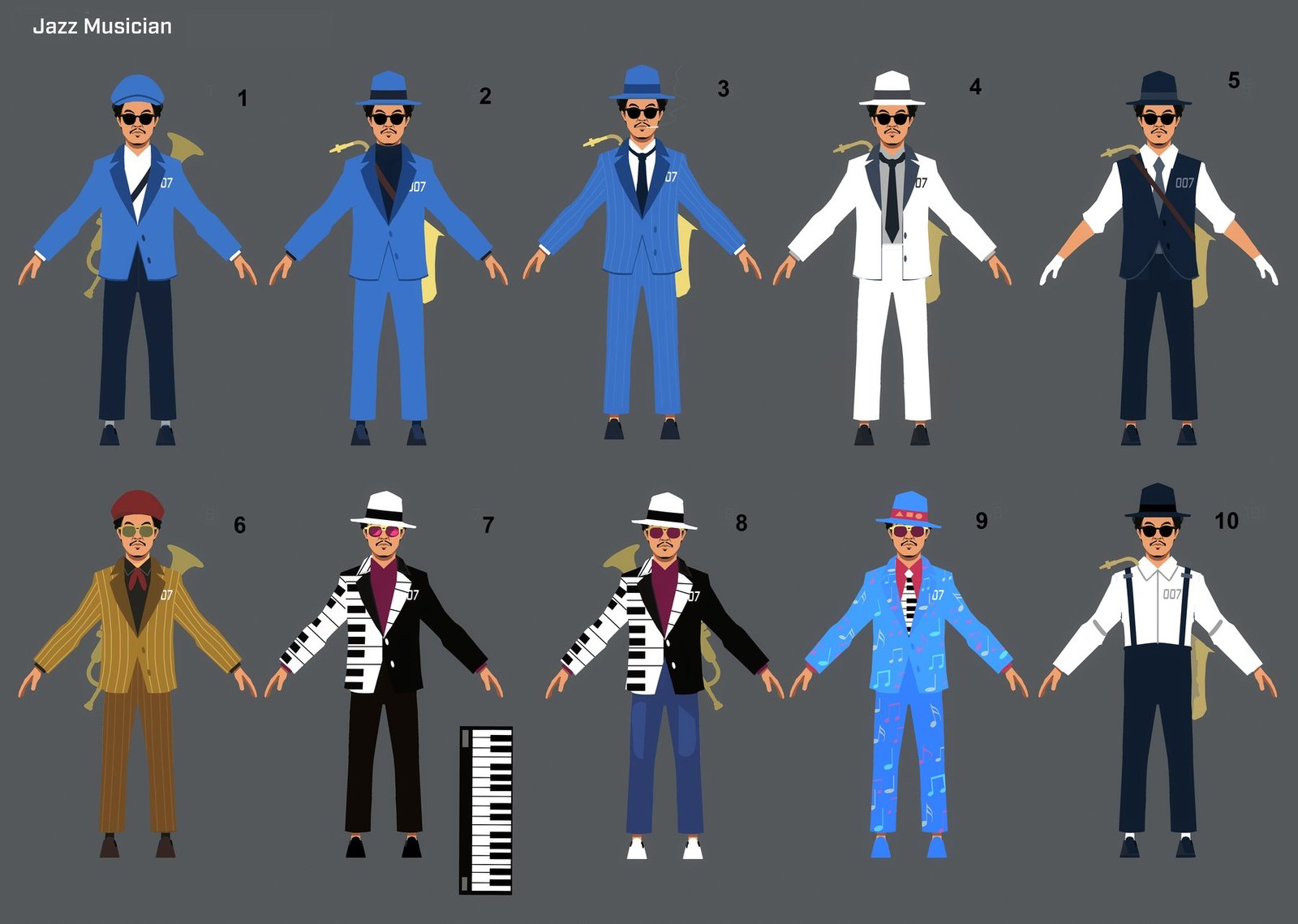
 Photoshop's default Count tool
A Better Count Tool
Photoshop's default Count tool
A Better Count Tool
Exported PNGs, straight out of Photoshop.
So your art director can just say "go with number 7."
No more "the blue one, third from the left." Numbered options make feedback quick and clear.
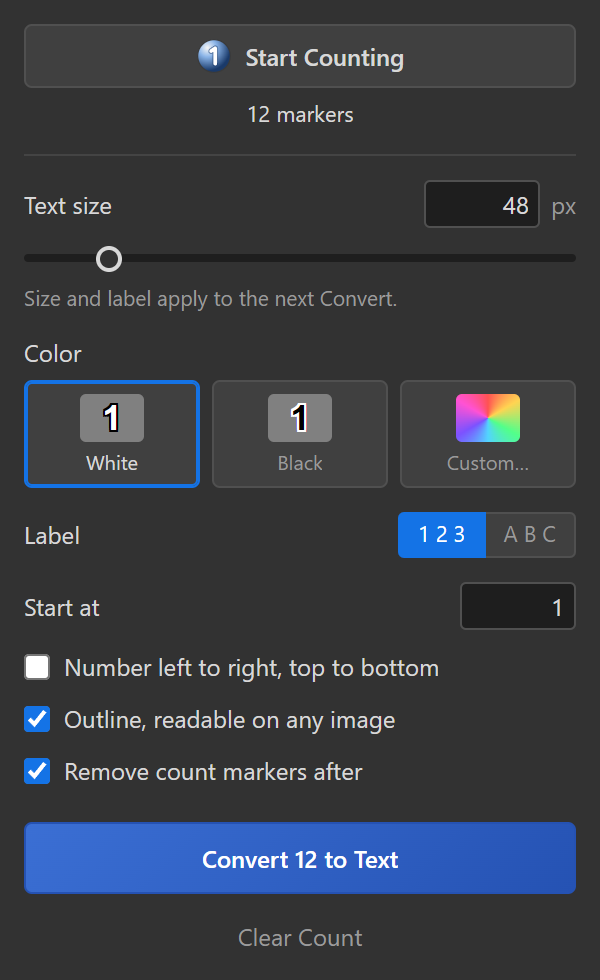
Three clicks from markers to text.
Start Counting
The panel switches you to the Count tool. Click each option on the canvas, like you always have.
Pick a look
White, black, or any color, with an outline so it reads on any image. 1 2 3 or A B C.
Convert to Text
Every marker becomes a real, editable text layer, grouped and in place. Export like normal.
Small tool, done properly.
Real text layers
Plain, editable type in a "Count Numbers" group. Retype any number by hand if you need to.
Readable on any image
White, black or any color, with an outline so numbers stand out on busy photos.
Live resize
Drag the size slider and the numbers resize as you drag. The whole drag is one history step.
1 2 3 or A B C
Switch labels after converting, start at any number, and keep any label you typed over.
Tidy numbering
Optionally renumber left to right, top to bottom, however you clicked them.
Fast and undoable
Built to keep Photoshop's history clean. Clears the old markers for you, if you want.
Questions
Why don't Count tool numbers show when I export from Photoshop?
Photoshop's Count tool numbers are on-screen markers only, so they never get saved into a JPEG or PNG. A Better Count Tool turns them into real text layers that do.
How do I number images or options in Photoshop?
Click Start Counting, click each option on the canvas, then click Convert to Text. Every number becomes an editable text layer.
Is it really free?
Yes. No trial, no account, no watermark.
Which Photoshop versions?
Photoshop 2021 or newer.
Can I change the numbers after converting?
Yes. Select the Count Numbers group and change size, color, outline or labels from the panel, or edit any number with the Type tool.
How do I install it?
Instructions come with the download.