Never lose a speedpaint to a forgotten record button.
PaintRecord starts recording on your first brush stroke and pauses when you stop painting. Get a clean canvas timelapse for free, or record your whole screen for tutorials with Pro.
Photoshop 2024 or newer · Windows & Mac · Records by itself; OBS optional (Pro) for 4K screen and mic.
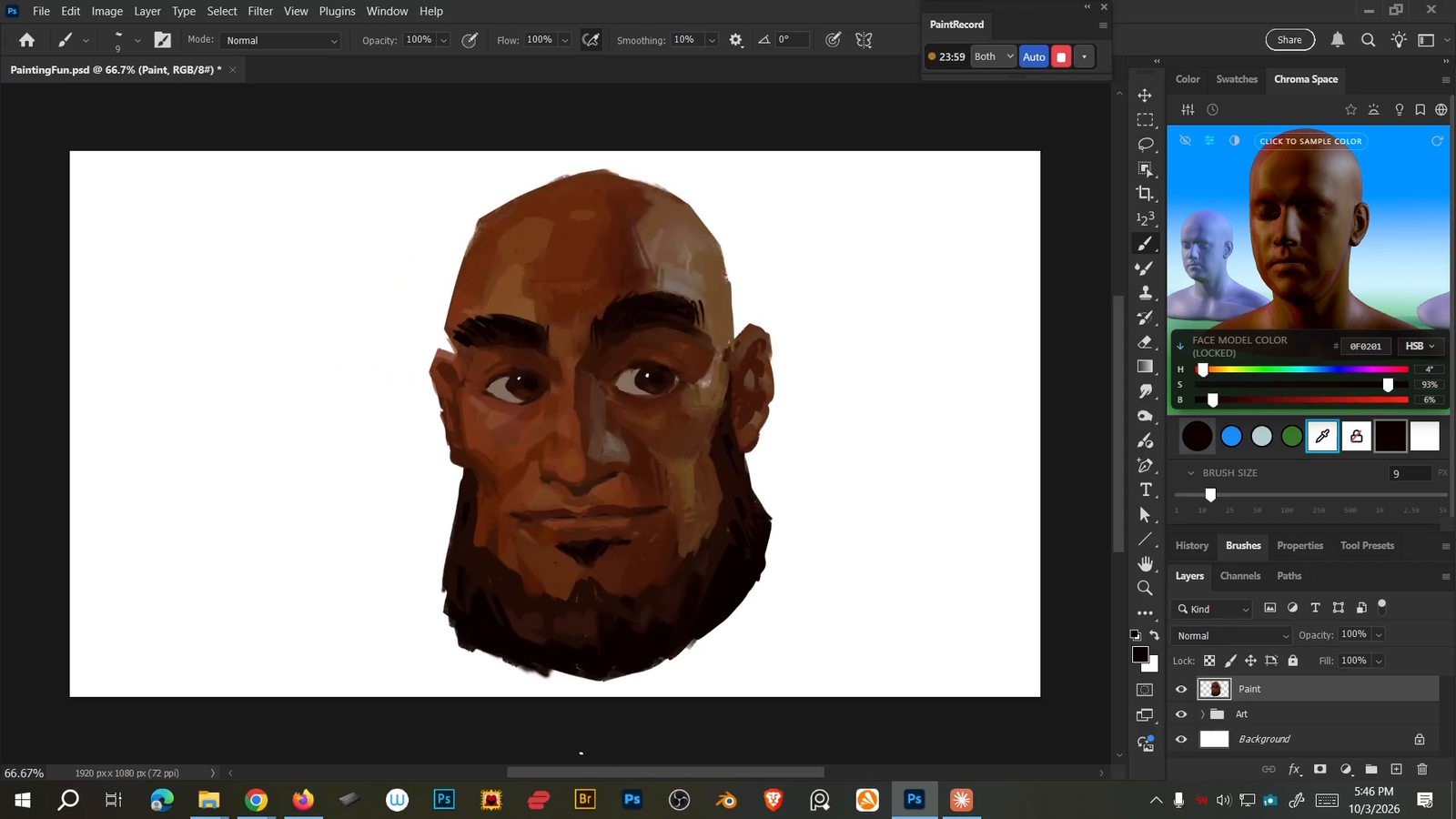
Record the screen, the canvas, or both.
Choose Canvas, Whole screen, or Both in the panel. Both saves two separate MP4s from one painting session.
Whole screen For tutorials Pro
Every brush, layer and setting, so viewers can follow along. Great for teaching and process videos.
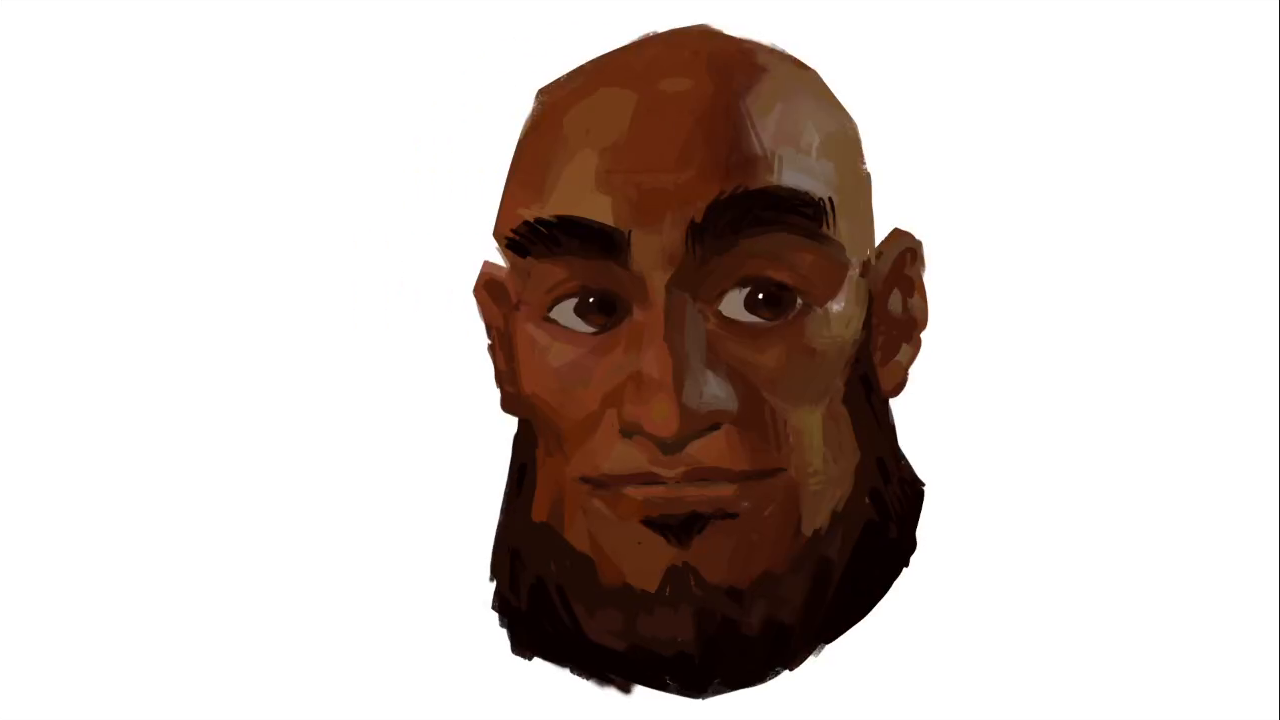
Canvas only Timelapse Free
Just the artwork coming together, Procreate-style. No menus or tools, and you can zoom or move freely.
Both at once Pro
Don't compromise: record both at the same time. Press record once and you get two files, the whole screen for your tutorial and a clean canvas timelapse for social media. Stop once and both are saved.
A compact mode that stays out of your way.
Expand the panel for every setting, shrink it to one slim bar to save space while you paint, or leave it as a single icon. It keeps recording either way.
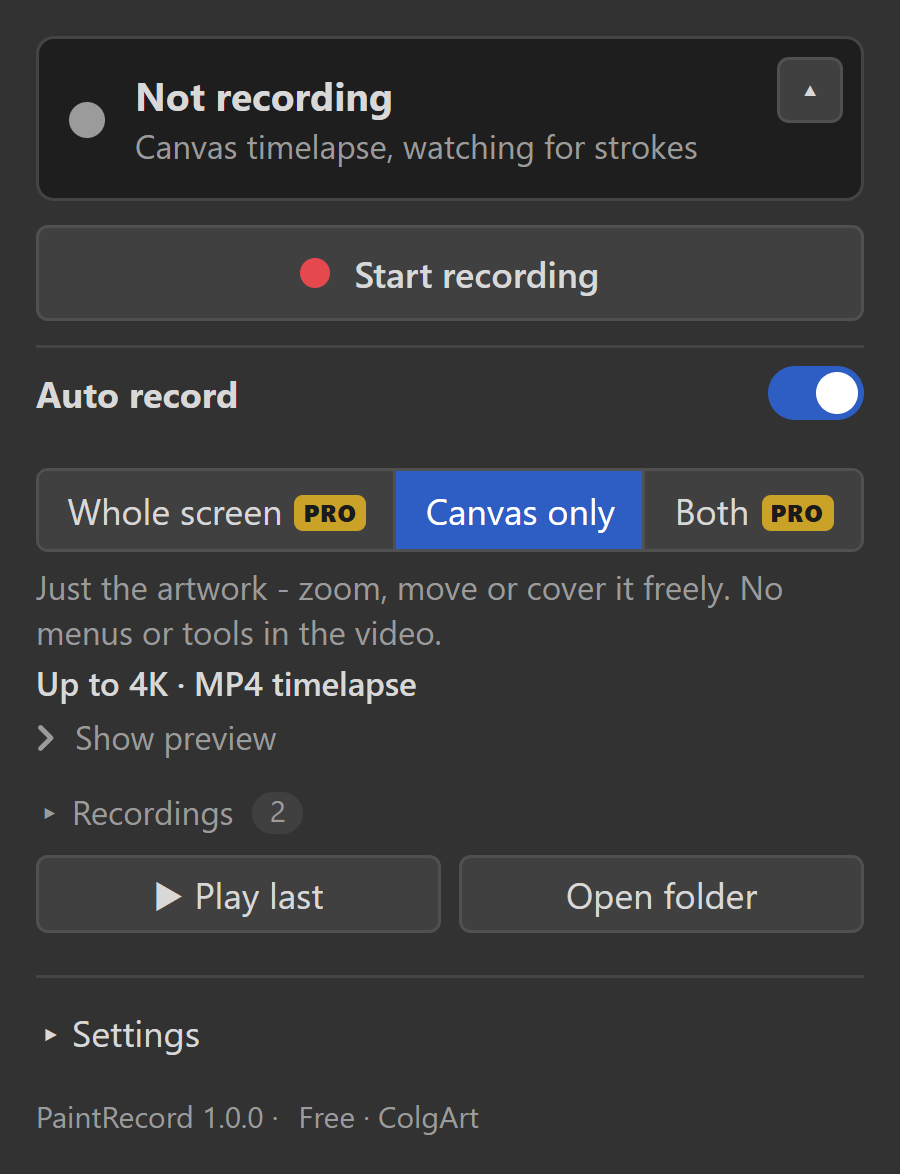
Expanded
Every setting in one place: recording mode, Auto record, your recordings and more.

Compact bar
One click shrinks the panel to a single slim line with the timer, mode, Auto and stop. It saves space next to your canvas.

Single icon
Collapse it to an icon in Photoshop's panel dock, or close it completely. It keeps recording in the background.
Turn it on once. Then forget it.
Leave Auto record on
It watches Photoshop's history for brush strokes. Prefer a nudge? It can remind you instead.
Paint
Your first stroke starts the recording. Step away and it pauses, then picks up when you come back.
Get your MP4
Stop when you're done. Get a canvas or whole-screen MP4, or two files with Both (Pro). Play last or open the folder from the panel.
Your recording, ready to use.
Save a clean canvas timelapse, a whole-screen tutorial, or record through OBS with Pro for 4K and microphone support. Choose Both to save separate canvas and screen MP4s from one session.
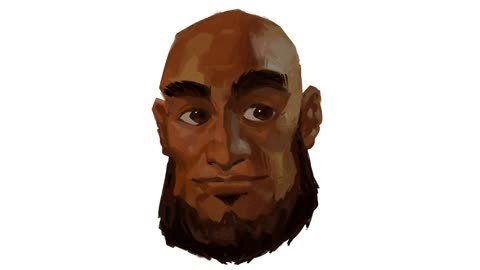
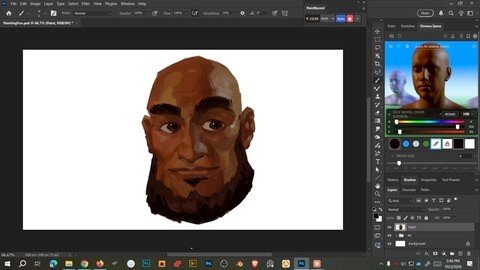
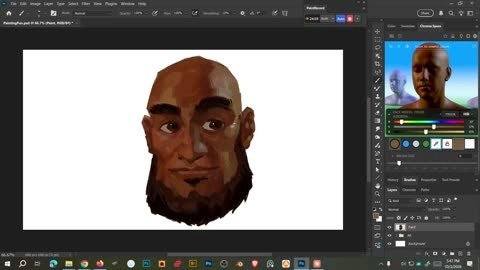
Find the take you need.
PaintRecord keeps your recent recordings in a list inside Photoshop. Click any take to open it in your video player, use Play last for the newest one, or open the recordings folder.
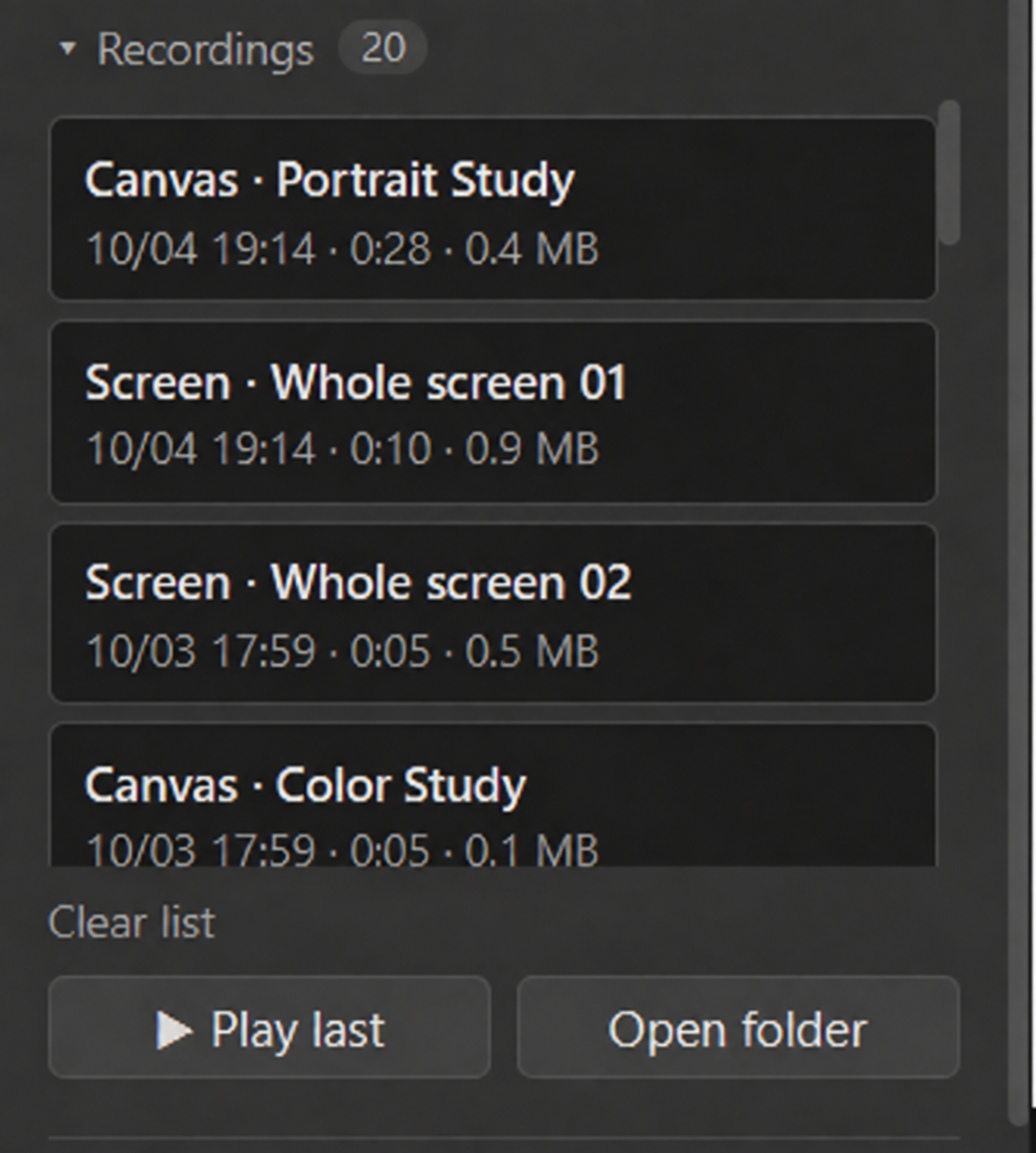 Sample recording names shown
Built for long painting sessions.
Starts on your first stroke
No button to remember. Undo and redo don't count as painting.
Pauses when you stop
Coffee breaks don't end up in the video. It resumes when you're back in Photoshop.
Records by itself
Saves MP4s with no extra software or account. Want a 4K screen recording or your microphone? Pro can record through OBS.
Crash-safe files
If Photoshop closes mid-recording, the screen recording is repaired the next time it starts.
Your recordings, one click away
The panel lists each take with its type, date, length and file size, so you can find the one you need.
Or just remind me
Rather press record yourself? It can nudge you when you start painting instead.
Free for timelapses. Pro for $29 when you want the whole screen.
Canvas only is free with everything included. No key needed.
- Canvas only timelapses, up to 4K
- Auto start and pause
- Stroke replay, one timelapse per canvas
- Compact bar, Windows and Mac
- Whole screen: every menu, brush and click
- Both at once: whole screen and a canvas timelapse
- Record with OBS: 4K screen, microphone, any monitor
How to use PaintRecord6 steps
Install
Windows: right-click
Install.ps1and choose "Run with PowerShell". Mac: double-clickInstall.command(if macOS blocks it, allow it under System Settings > Privacy & Security > Open Anyway).Fully quit Photoshop and open it again, then open the panel from Window > Extensions > PaintRecord. Needs Photoshop 2024 or newer.
Record your first timelapse
Leave Auto record on and start painting. Your first brush stroke starts the recording, and it pauses by itself when you stop. You can also press Start recording yourself.
Choose what to record
Pick Canvas only (free) for a clean timelapse of the artwork, Whole screen (Pro) for tutorials, or Both (Pro) to get both files from one session. You can switch any time.
Make it small
Click the shrink button on the status card to turn the panel into one slim bar while you paint. Collapse it to an icon or close it, and it keeps recording in the background.
Find your recordings
Every take is listed under Recordings. Click a take to open it in your default video player. Play last opens the newest one; Open folder or a take's folder icon shows where files were saved. Videos go to your Videos folder by default.
Settings
Under Settings: choose where videos are saved, what happens after a break (pause, stop or keep recording), whether any edit counts as activity, and the recording sounds and volume. With Pro, Record with OBS adds a 4K screen, your microphone and other monitors.
Have a Pro key? Open the panel's menu (top-right) > PaintRecord Pro / License... and paste it in.
Questions7 answers
How do I make a timelapse of my painting in Photoshop?
Turn on Auto record in PaintRecord. It starts on your first brush stroke and saves an MP4 of your canvas. Canvas recording is free.
Can I record a speedpaint without OBS?
Yes. PaintRecord records MP4 files by itself. OBS is only needed for Pro extras like a 4K screen recording or your microphone.
Do I need OBS?
No. PaintRecord records MP4 files by itself. OBS is optional, for a 4K screen recording, your microphone or another monitor, and that is a Pro feature.
Does it record sound?
Not by itself. PaintRecord Pro can record through OBS, which captures your microphone.
Which monitor does it record?
Whole screen (Pro) records your main monitor, or any monitor through OBS. Canvas only records the artwork wherever it is.
Does it work on Mac?
Yes. PaintRecord works on Windows and Mac, with Photoshop 2024 or newer.
Does it slow Photoshop down?
Recording uses some system resources, so performance depends on your document, resolution and computer. If painting feels slower, try the 1080p Canvas setting.